Graph paper templates are essential tools for enhancing visual communication in PowerPoint presentations, especially for professionals in design, engineering, and education. These templates provide a structured framework that aids in organizing information and presenting data clearly, making them invaluable for various projects.
Benefits of Using Graph Paper Templates
Incorporating graph paper templates into PowerPoint offers several advantages:
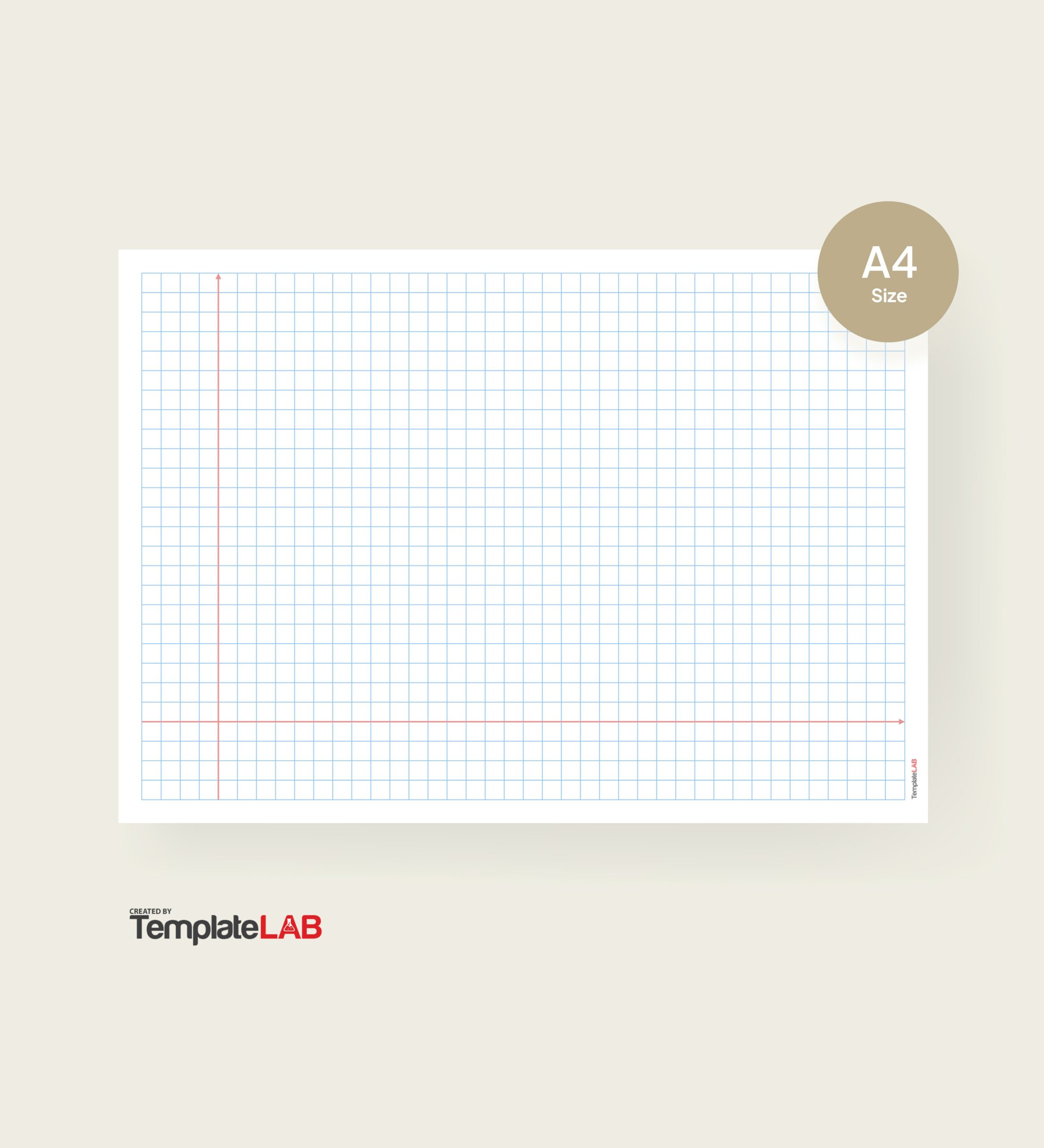
- Improved Clarity: Enhances the presentation of data through structured visuals.
- Ease of Layout Design: Simplifies the process of creating organized layouts.
- Precise Diagrams: Facilitates the creation of accurate and detailed diagrams.
These templates are particularly useful in scenarios such as:
- Creating architectural plans
- Designing scientific graphs
- Developing classroom activities
How to Create a Custom Graph Paper Template in PowerPoint
Follow these steps to create a customized graph paper template in PowerPoint:
- Open PowerPoint and create a new slide.
- Select “Grid and Guides” from the View menu.
- Adjust grid spacing to your preference.
- Change the background color if desired.
- Save the slide as a template for future use.
Experiment with different designs and layouts to find what best suits your project needs. Optimize your presentations by using these templates effectively for maximum impact.
Where to Find Pre-made Graph Paper Templates
You can find reliable sources for downloading pre-made graph paper templates suitable for PowerPoint, including:
- Free Options: Websites like Canva and Free PowerPoint Templates offer various free templates.
- Paid Options: GraphicRiver and Envato Elements provide high-quality templates for purchase.
Select templates that are compatible with different versions of PowerPoint to ensure accessibility for all users, regardless of software limitations.
In conclusion, graph paper templates can significantly enhance the quality and organization of your presentations. Explore both custom and pre-made options to improve your PowerPoint projects effectively.